Servers are often exposed not by a clever exploit but by a small oversight: a database port left open to the whole internet, SSH reachable from anywhere, a firewall rule meant to be tightened "later."
Writing the right rules is not hard. Writing the right rules every time, for every service, without locking yourself out, is. That is the gap NeuroWall's App Protection wizard closes: you say what you want to protect and who may use it, and NeuroWall works out the firewall rules, shows them to you, and only then applies them.
This post walks through the whole wizard, screen by screen.
In short
- Pick a target: Caddy, PostgreSQL, ClickHouse or a Minecraft (Java) game server.
- Tell NeuroWall which server, which admins may use SSH, and which clients are trusted (or blocked).
- Review every rule before anything is applied. If a rule fails to apply, the rules created in that attempt are removed again.
- Each run is its own named protection, so you can remove it later without touching anything else.
Step 0: Sign in
App Protection lives in the NeuroWall web UI. Sign in with your administrator account.
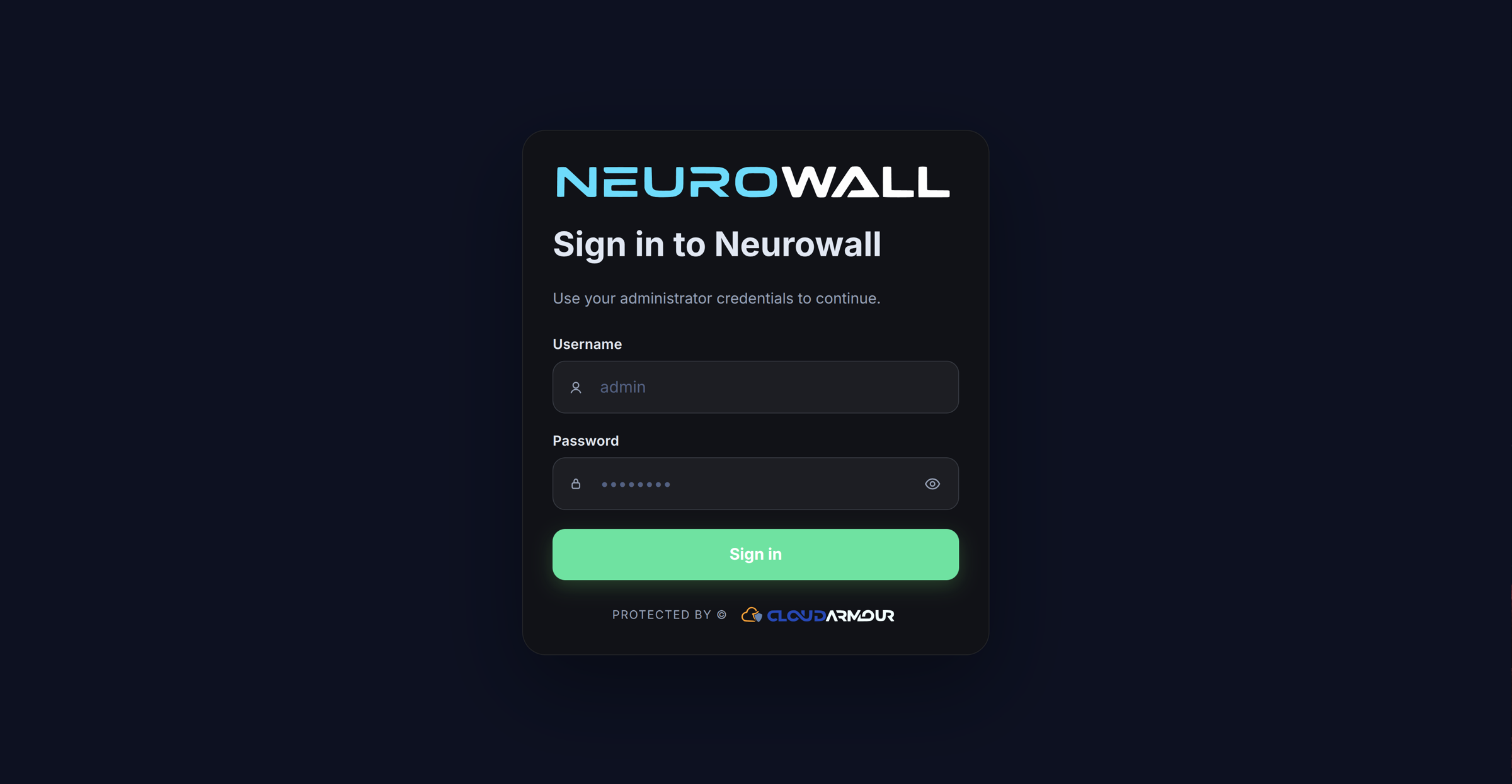
Then open System → App Protection. (Viewer accounts can look but not change anything; the wizard fails closed for read-only users.)
Step 1: Choose what to protect
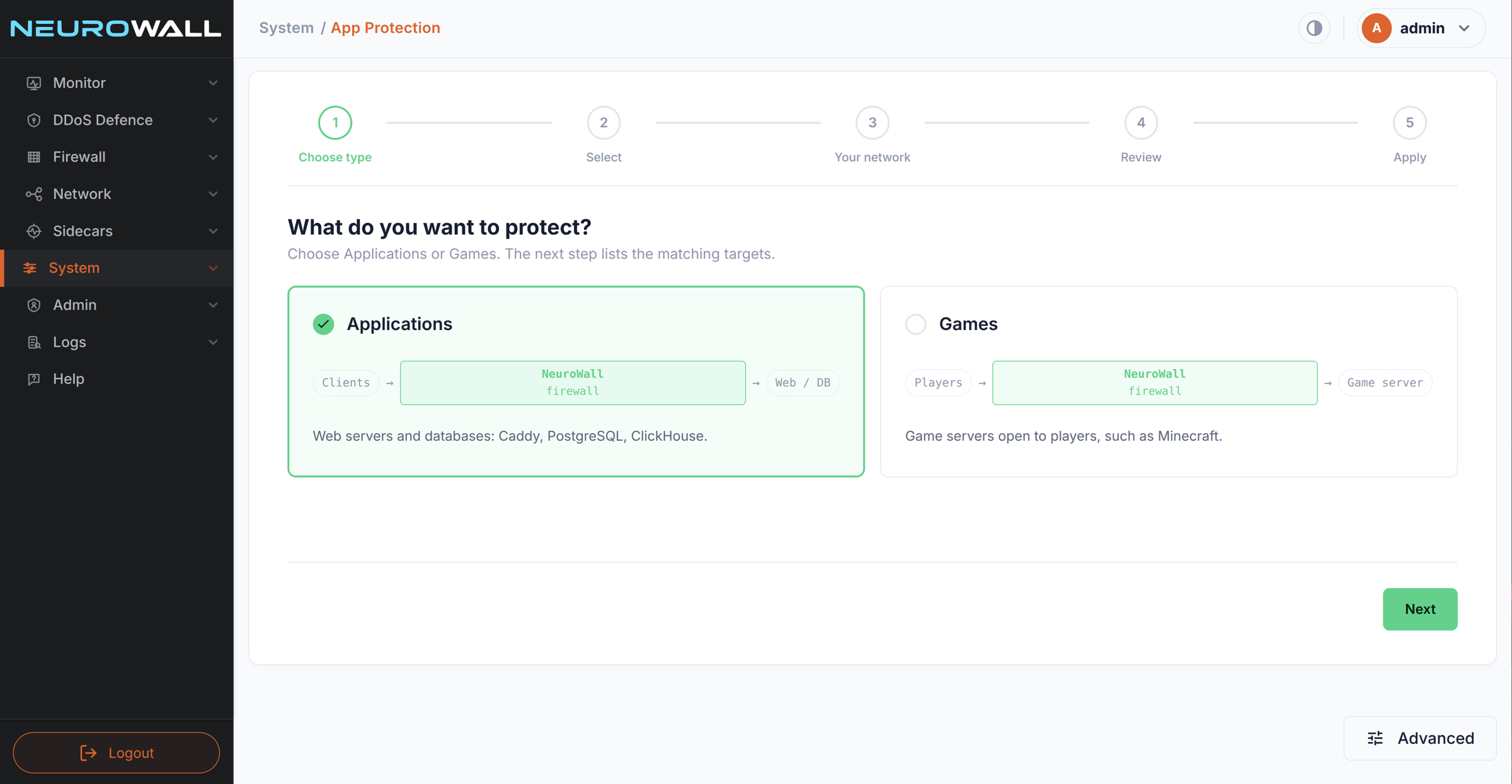
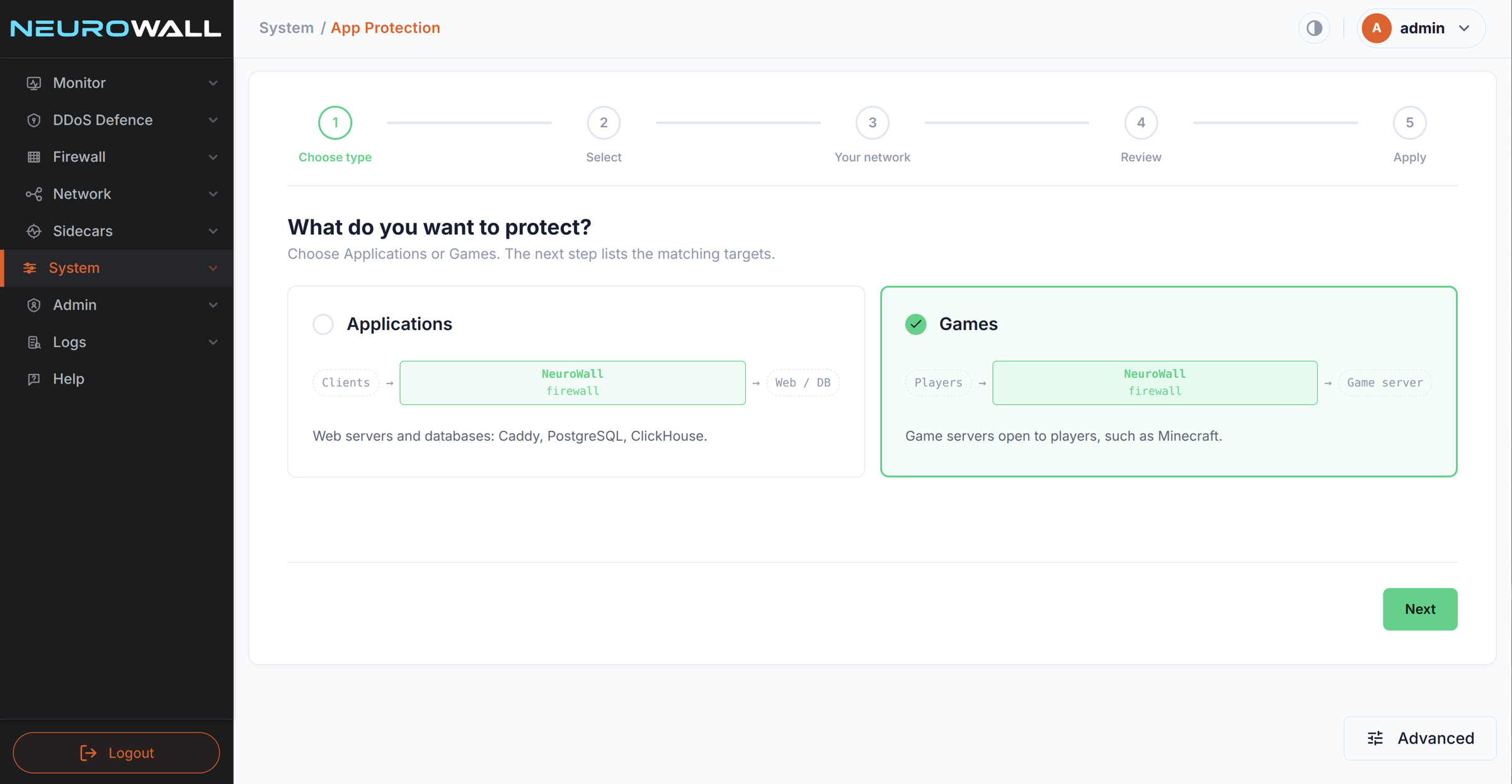
The first screen asks one question: What do you want to protect?
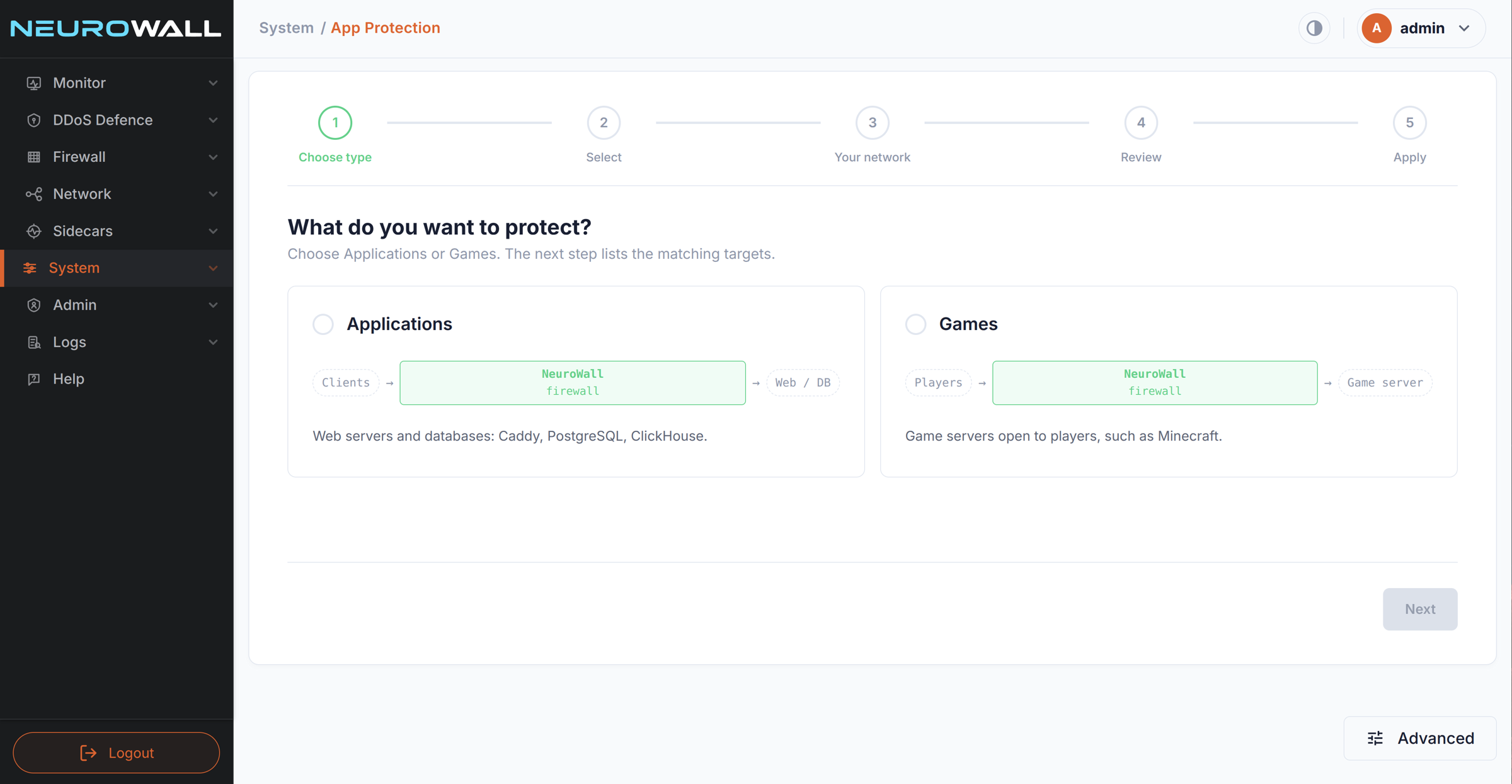
There are two families, each shown with the traffic path NeuroWall puts in front of the service:
- Applications: web servers and databases (Caddy, PostgreSQL, ClickHouse). Clients → NeuroWall → Web / DB.
- Games: game servers open to players, such as Minecraft. Players → NeuroWall → Game server.
Pick one and the Next button lights up.
Step 2: Select the target
Now you choose the exact service. Each target comes with its own ready-made rule set, so you don't have to remember which ports it uses or what should stay closed.
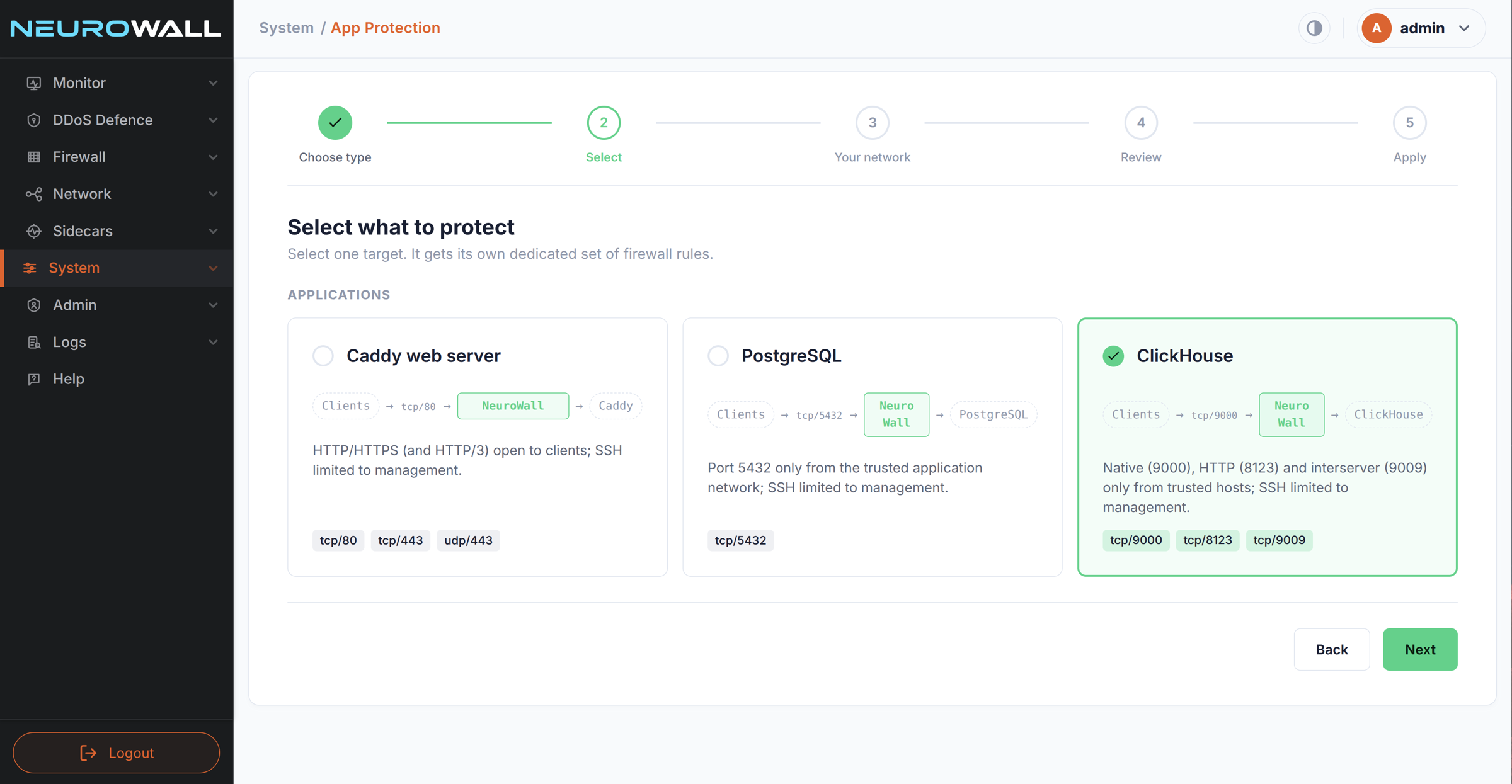
For applications, the catalogue shows the ports each service needs and how they are meant to be exposed:
| Target | Ports | How NeuroWall protects it |
|---|---|---|
| Caddy web server | tcp/80, tcp/443, udp/443 | HTTP/HTTPS (and HTTP/3) open to clients; SSH limited to management |
| PostgreSQL | tcp/5432 | Port 5432 only from the trusted application network; SSH limited to management |
| ClickHouse | tcp/9000, tcp/8123, tcp/9009 | Native, HTTP and interserver ports only from trusted hosts; SSH limited to management |
The little diagram on each card (Clients → tcp/9000 → NeuroWall → ClickHouse) is a good mental model for the whole feature: NeuroWall sits in front of the service and decides who gets through.
Choosing a game server adds two optional extras:
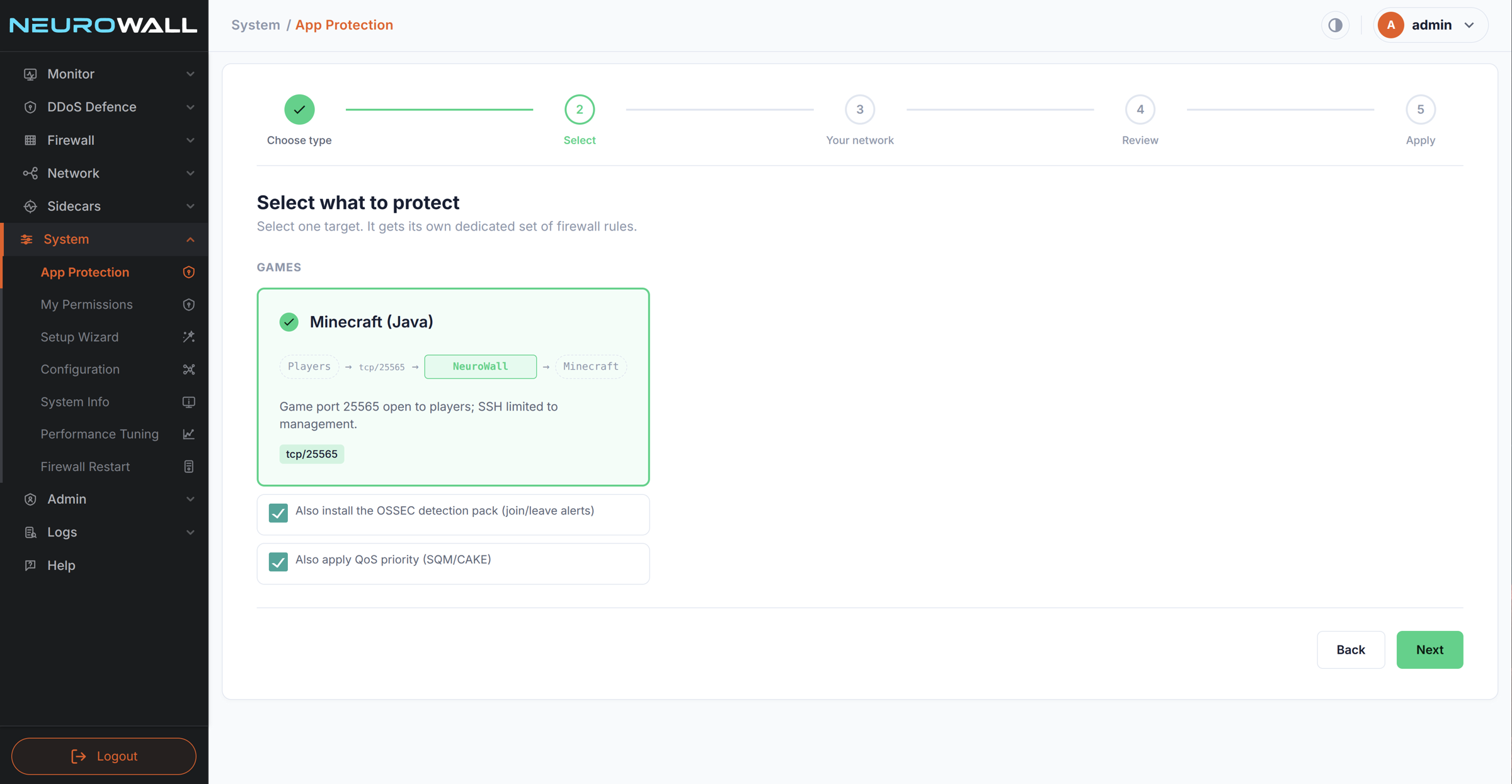
- OSSEC detection pack: adds join/leave alerts for the game server.
- QoS priority (SQM/CAKE): prioritises game traffic so a busy link doesn't turn into lag.
Step 3: Describe your network
This is the only step where you type anything, and the form is short. Here it is for ClickHouse:
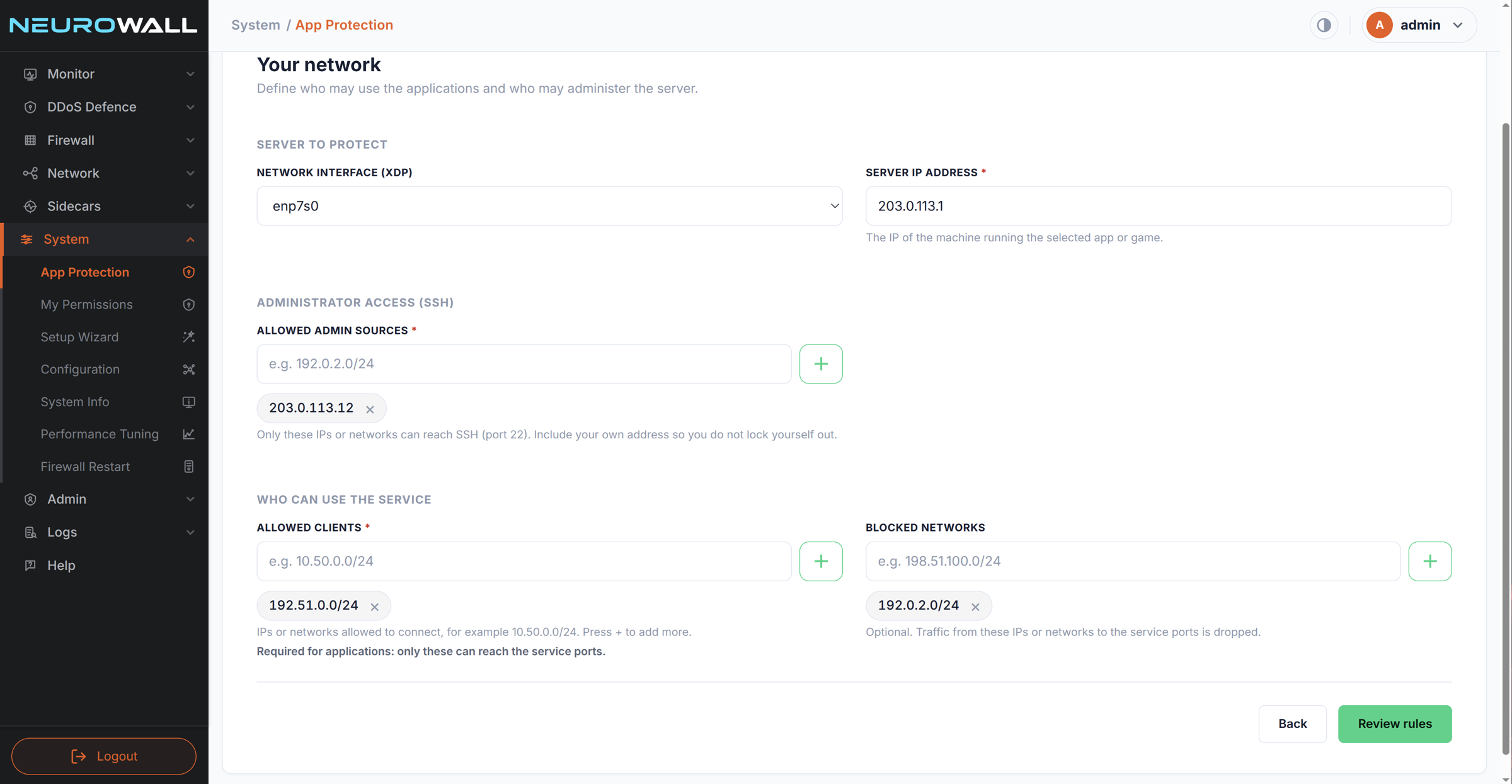
- Server to protect: the network interface (the one NeuroWall attaches XDP to) and the server's IP address.
- Administrator access (SSH): which IPs or networks may reach SSH on port 22. The form reminds you to include your own address so you do not lock yourself out, and it is a required field, so you can't forget.
- Who can use the service:
- Allowed clients: the networks allowed to connect. Required for applications, because a database should only talk to the hosts that need it.
- Blocked networks: optional. Traffic from these networks to the service ports is dropped.
Everything is entered as pills: type an address or CIDR, press +, and it becomes a removable tag. Bad or duplicate entries are rejected on the spot.
For a game server the form is the same, with two differences: allowed clients are optional ("leave empty to let anyone connect," which is what you want for a public game server), and there is a traffic shaping section for QoS.
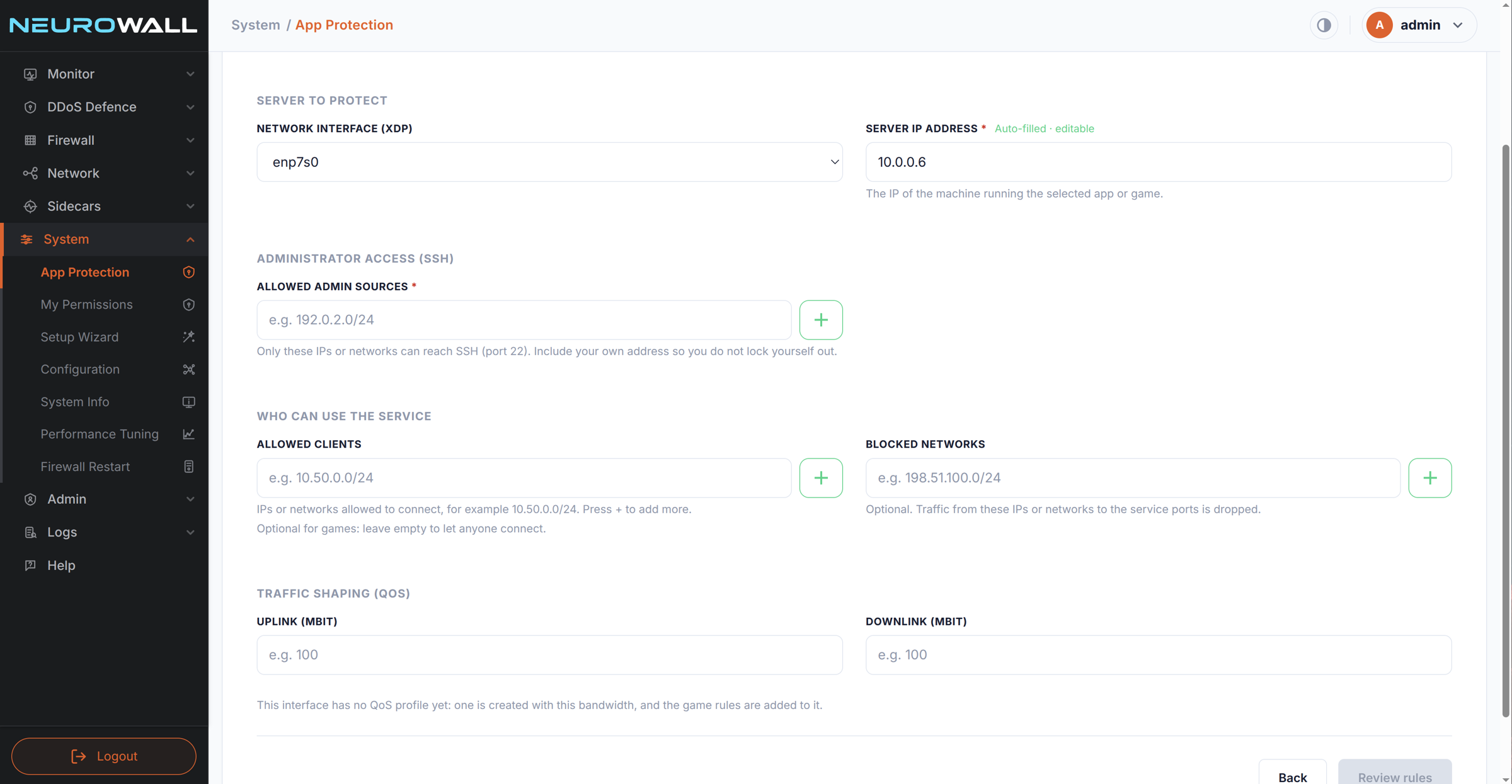
Here the server IP is auto-filled (and still editable), and you enter your uplink and downlink in Mbit. If the interface has no QoS profile yet, one is created with those numbers. If one already exists, its bandwidth is left alone and the game rules are simply added to it.
Step 4: Review: nothing is applied yet
This is the screen we're proudest of. Before NeuroWall changes a single rule, it shows you exactly what it is about to do.
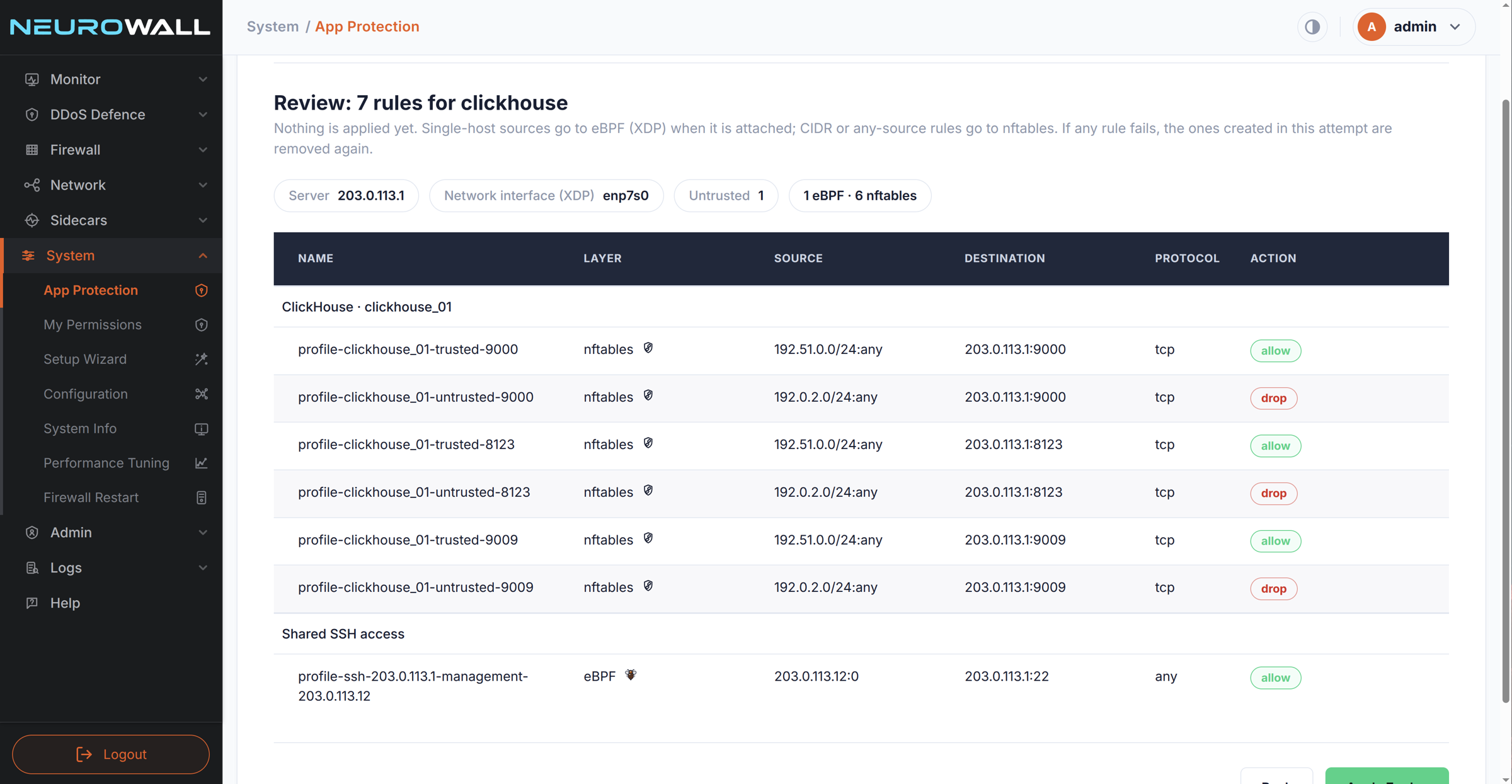
The header reads "Review: 7 rules for clickhouse." Underneath, NeuroWall spells out the guarantee:
Nothing is applied yet. Single-host sources go to eBPF (XDP) when it is attached; CIDR or any-source rules go to nftables. If any rule fails, the ones created in this attempt are removed again.
Look at the table. For each ClickHouse port (9000, 8123, 9009) there is a pair of rules:
- an allow rule for the trusted network (
192.51.0.0/24), and - a drop rule for the blocked network (
192.0.2.0/24).
Below them, under Shared SSH access, is one more rule: allow SSH from the single admin address 203.0.113.12. Because that source is a single host, it goes to the eBPF (XDP) layer. The CIDR-based rules go to nftables, which is why the summary chips read 1 eBPF · 6 nftables.
You get the layer, source, destination, protocol and action of every rule, with names like profile-clickhouse_01-trusted-9000 so you can recognise them later. If anything looks wrong, press Back and fix it. Nothing has happened yet.
The game server review is just as plain:
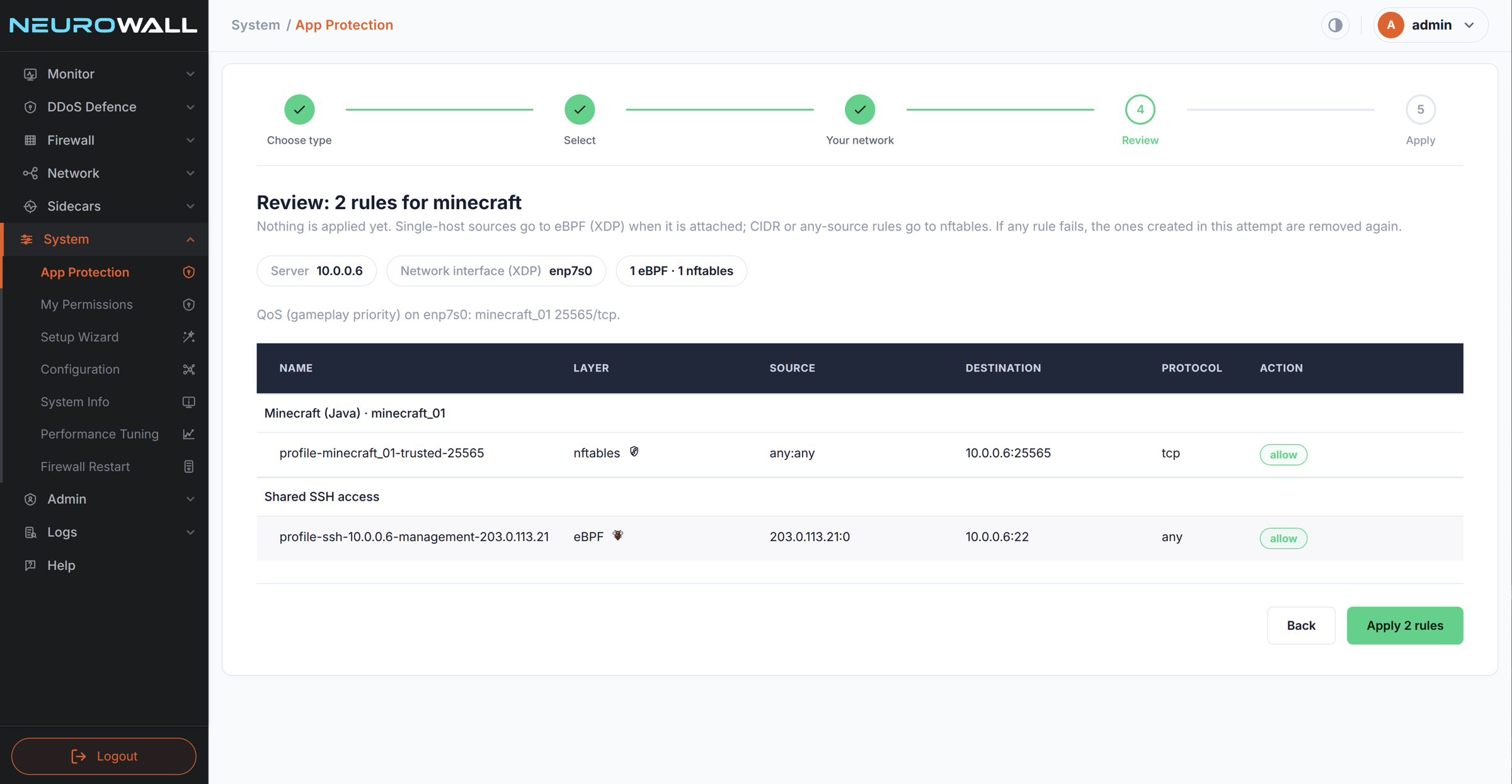
Two rules: allow TCP 25565 to the game server from anyone, and the shared SSH rule restricting management access to one admin address. A line above the table confirms the QoS plan: "QoS (gameplay priority) on enp7s0: minecraft_01 25565/tcp." Press Apply 2 rules and you're done.
Step 5: Apply, and manage what you applied
When you apply, NeuroWall creates the rules through the same rules engine as everything else in the product, so they show up in the normal rule lists (the result page links you straight to the eBPF and nftables views). A few details make this safe to live with:
- All or nothing. If any rule fails, the rules created during that attempt are rolled back.
- Every run is its own protection. The first ClickHouse run becomes
clickhouse_01, the next oneclickhouse_02, and so on. Removing a protection deletes only its rules. - Shared rules are kept when they're still needed. If two protections use the same SSH management rule, removing one leaves the rule in place for the other.
- No duplicates. If a rule you ask for already exists with the same traffic pattern, NeuroWall reuses it and tells you so.
- Detection packs are separate. Under the Advanced button you can install or uninstall OSSEC detection packs at any time without touching the firewall rules.
Why a wizard instead of "just write the rules"?
Because the hard part of firewalling isn't syntax, it's consistency:
- You don't have to remember the ports. The catalogue knows what ClickHouse, PostgreSQL, Caddy and Minecraft need.
- SSH is handled for you. Every protection restricts SSH to the admin sources you name, instead of leaving port 22 as an afterthought.
- You see the result before it exists. The review step turns "I hope this is right" into "I can read it."
- It's reversible. Named, per-run protections and automatic rollback mean experimenting is cheap.
- The right engine does the right job. Single-host rules ride the XDP fast path when XDP is attached; CIDR and any-source rules use nftables. You get both without choosing.
It also means the person who sets up the database doesn't have to be the person who knows nftables syntax by heart.
What it is and isn't
App Protection is a guided way to generate and apply a sensible rule set for a known service. It is not a replacement for thinking about your network. You still decide who is trusted and which addresses are blocked, and the wizard is only as good as those answers. The review screen exists so that you check them.
Try it
App Protection is part of NeuroWall, CloudArmour's Linux-native firewall, built for people who run real servers: ISPs, hosting providers, game communities and teams that run their own databases.
Learn more about NeuroWall and CloudArmour at cloudarmour.io
- Running an ISP or a data centre and want to talk about protecting your customers' servers? Reach out through cloudarmour.io or info@cloudarmour.io
NeuroWall is built by CloudArmour.